Social Media Monday : Twitter clients

We're back to Twitter today, and so far we've talked about the what/why, the how, the who and today we're going to talk a bit about some of the ways to start enhancing the experience! Many people who use twitter simply log in at http://twitter.com/ and work from there.  But there are many (like 100s) of applications that have been designed to work with twitter to make your twitter experience even better.

There are many reasons to use some of the different clients and today we're going to talk about two of the more popular ones that people use, and why.  I've asked Amy to help me out with Tweetdeck information since I only use one of the two we're going to be talking about.

Tweetdeck

Here are Amy's thoughts on using Tweetdeck.

I use Tweetdeck on my laptop, my iPhone and our iPad and there are a few reasons that I’ve stuck with it:

  • It automatically refreshes, unlike the Twitter home page (the thing that bothers me most about the Twitter home page)
  • You can mark tweets as read, allowing you to keep your stream under control
  • You can create columns for different users or hashtags which helps to keep track of the things that are important to you
  • You can tweet pictures right in Tweetdeck
  • It shortens links automatically to save characters (and if you hover over shortened links it shows you a preview of what the long link is, which helps avoid nasty links).
  • They’ve recently added a feature to the desktop that helps auto-complete user names (just in case you can’t remember if someone has an underscore in their user name, for example) – in the iPhone and iPad versions you can search the people you follow if you can’t remember exactly how someone spells their user name, though I find it’s a bit buggy)
  • You can sign up for a tweetdeck account and sync your columns across multiple devices.

Here is the rundown on what I use and why.

Hootsuite

  • Hootsuite is web based so you can log in to it from wherever you are without having to bring your own computer with you.
  • You can have multiple columns and tabs to manage multiple twitter accounts as well as multiple views of each account (@replies, direct messages, hashtags, scheduled tweets)
  • You can schedule tweets! This is key for Kids in the Capital and some of my other blogs and a great way to make sure your important messages are getting out even when you aren't online. Do you have a great blog post you want to make sure all your friends see but you know you won't be online at 9pm tonight when most of them are? Schedule it!
  • You can have multiple users on one account (although this is now a paid feature).  This means that people can share the responsibility on a twitter account, something that has come in very useful for Kids in the Capital and my other blog Losing it in Ottawa. You can even assign tweets to people, letting them know they're responsible for dealing with a specific issue.  And when a different team member replies, you can tell the tweet has already been replied to and you can click to see what the response was.
  • You can shorten long URLs right in the program
  • You can tweet photos right from the software, although I've never done this and I don't know why.

There are many many more clients to choose from: Seesmic, Twitterfall and Cotweet are some. Plus, there are tons that have been developed for mobile phones, such as Echofon, and Uber Twitter. Oh! And I didn't even mention a lot of these programs allow you to manage your facebook and email and other social media from the same platform too (although I don't do that - do any of you?)

I ask that my tech savvy friends that are already using some of these other clients please share the whats/whys here in the comments, we'd love to hear.  And for those of you still using the web, have you tried any of the others? If you haven't do any of these features temp you?

Let's discuss!  And in the future there is a lot more to talk about - like twtvite and twitpic.  Oh, the fun never ends with twitter I tell you! :)

Lara is mom to 4 year old Kiernan and 1 year old twins Quinn and Juliette. You can read her blog at Gliding Through Motherhood.


Game On: Dance Central

by Maranda This post is part of a new monthly series about gaming for and with kids.  Consider it A Mom’s Opinion on Gaming.

Game:  Dance Central Platform:  Xbox 360 with Kinect Players: 1-2 Rating: Teen (for song lyrics)

Dance Central is one of the launch titles for Xbox 360’s new Kinect motion controller.  It’s from the makers of Rock Band and follows a similar formula, only this time instead of matching notes on a plastic guitar, you’re using the Kinect’s full body motion control to match dance moves.  Unlike dance video games of the past, there are no controllers to hold or mats to jump on.  The Kinect’s camera capture every aspect of your movements and your score is based on your ability to mirror the on-screen dancer from head to toe.

Thankfully no real dancing skills are required, and your on-screen avatar always looks great no matter what you do.  Unlike music games, there is no failing and all 32 songs are unlocked from the beginning.  The tracks cover several decades of material and there are three levels of difficulty, making this a great game for the whole family. [But note the game is rated Teen due to a few song lyrics]

My 11 year old son and I in particular have been really enjoying Dance Central, including the Dance Battle mode which allows two players to swap in and out and each dance at their own difficulty level.  I love that he's being introduced to some new music, and he even had his guitar instructor teach him "Funkytown" after dancing to it in-game.

Personally, I love the addition of the “workout mode” which gives you an approximation of calories burned for each song.  This makes Dance Central a nice alternative to traditional workouts, and trust me, you will work up a sweat!

Dance Central is super polished and the Kinect controller works solidly.  I plan on making it a part of our regular family gaming sessions, and also a part of my winter workout routine.

Maranda is a mom of four who loves games as much as her kids do and believes the best part of parenting is having someone to play with. She blogs about parenting, techonology and practical-yet-wholesome cooking at MomIcon – adventures of a mom, geek, gamer. Her Xbox Live Gamertag is HotelQueen.

Sushi snacks

By Vicky Last month I stopped by my sitter's house as she was in the midst of bake-sale frenzy for her daughter's school. There were cookies, brownies, and cupcakes galore! Among the treats I spotted the most amazing thing of all - sushi! Joel was completely astounded. He ate 3 pieces and asked for more.

This wasn't your ordinary sushi, it was rice crispy treat sushi! I asked my sitter for the recipe, and it's so easy to do. You can get the kids to help, or make these for your next birthday party.

Here's what you'll need: -a batch of rice crispy cereal treats -licorice or gummy bears or fish shaped jube jubes -at least one box of fruit roll ups -parchment paper

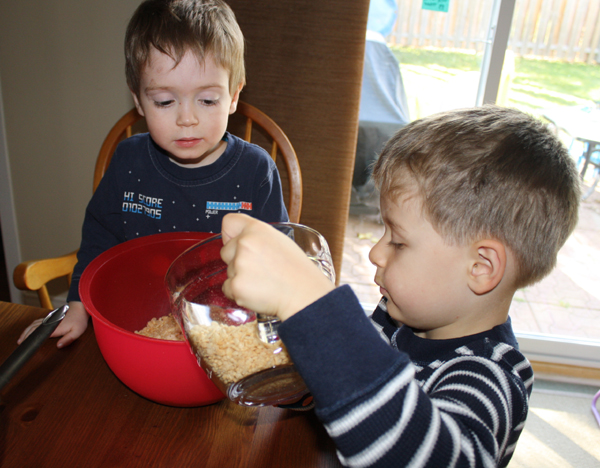
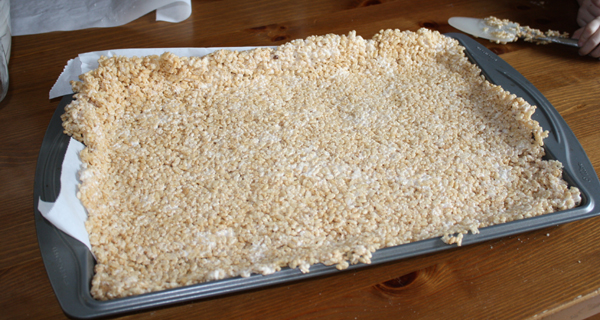
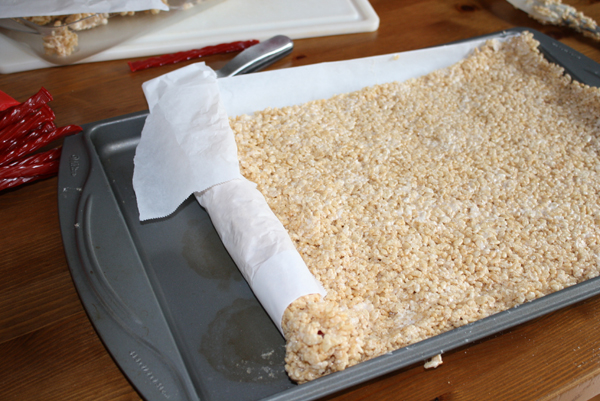
Grab a couple of helpers and follow the recipes for Rice Crispy treats. Instead of putting them in a pan, roll them out into a rectangle onto parchment paper, on top of a cookie sheet, about half an inch thick. I found it helped to put another piece of parchment paper on top and then smooth them out by hand.

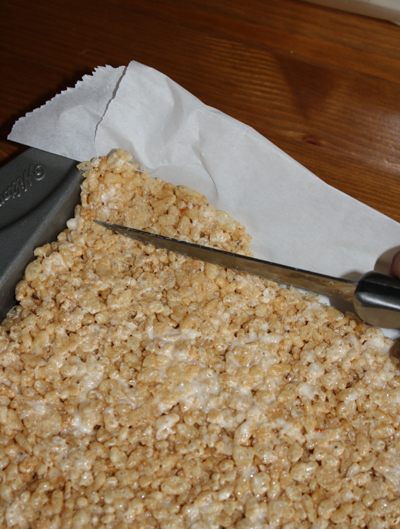
Next trim the edges.

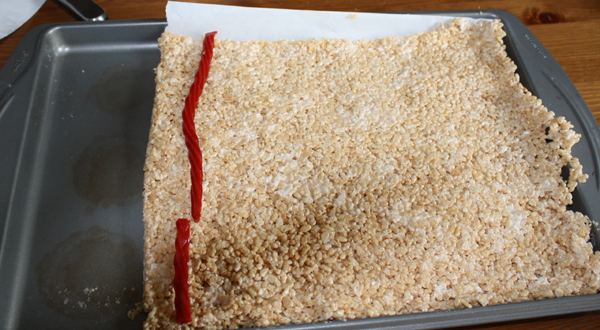
Then lay the licorice (you could use worms or gummy bears too) across the rectangle, and roll up the edge into a tight roll. It helped to use parchment paper to roll it tightly.

Cut the roll and set it aside, and continue making more rolls.

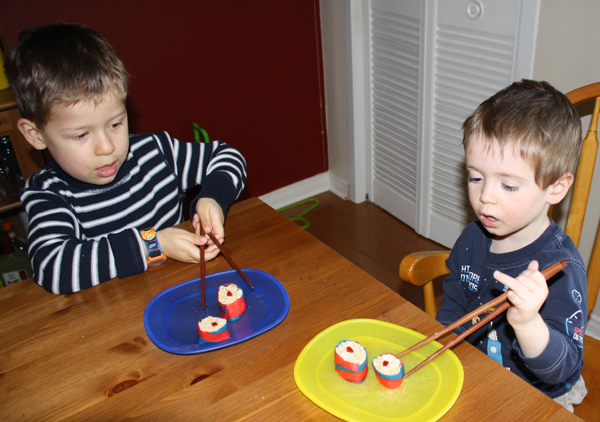
Then wrap the fruit roll ups around each roll, you can overlap the segments ( or even use different colours) and slice them into rounds with a sharp knife.

Voila!

It's important to eat them with chopsticks, you know.

If you are feeling ambitious you can even try Nagiri style sushi using jube jube fish.

The kids will love them!

Vicky is the mom to 4 year old son named Joel and 1 year old daughter named Mieka. You can read her blog at blog Some Kind of Wondermom.

Homemade placemats

by Brie Our 4 year old daughter loves to do art. All you have to do is look around our house at the crayons pieces littering the floor and tucked into the corners of our rooms. We have mounds and mounds of her art work. Last year, when she was in preschool, she was cranking out paintings faster then I knew what to do with them. Our hallway became a gallery of painting. 

Eventually I took all the art work off the wall. I felt bad just throwing it out though. In a flash of what seemed like brilliance at the time I decided to turn the art into something practical. Something useful that I could pass onto family. Something that would get used and not just put in an art file.

Check out these placemats!

I laid the large sheets of paper on the dining room table and used a kids placement we had to trace out the rectangles. I took my time and made sure to position the placemat so as to capture the most artistic design. I was looking for bold colours! I wanted swirls and zigzags! I wanted art!

In the end I had twelve rectangular pieces. I took them to a large office supply store to have laminated at a cost of $2.50 each. It took about a week and when I picked them up I was pleasantly surprised by how great the bright paint looked laminated.

My family was just as happy. I passed on the placemats to aunts, uncles and grandparents. Since our family all live outside of Ottawa I thought this was a great way to have a reminder of the kids every morning over breakfast. My sister even decided they were too nice to eat off of and uses them for art work in her bathroom. That is what I call win-win.

Homemade placemats would be a great gift idea for family this holiday season. What other creative uses do you have for your kids art?

Brie is the mom of a 4 year old daughter “the girl” and 2 old son “the boy”. You can read her blog at Capital Mom.

Picture Perfect Holiday Photos: first installment

By Shawna Even if you’re an office-dwelling hermit and don’t see the decorations up at the stores and the ads on TV, it’s hard to fail to notice: CHRISTMAS is coming!  (And Chanukah, and the Winter Solstice; Diwali is already here!)   Those of us that celebrate Christmas and have young children know that this is the perfect excuse to foist pictures of our beautiful offspring onto all the relatives and friends that must be dying for an up-to-date pic to replace that one that’s gotten grimy on their fridge over the last year.  After all, it’s not just accepted, it’s expected.  And with the proliferation of high-quality, low-cost digital cameras and free photo software, it’s never been cheaper or easier to do.   If you’re like most parents of young kids, you probably have hundreds of photos on your hard drive to choose from.  And, if you’re like me, that probably won’t stop you from trying to take “the” Christmas photo again this year.  You know the one: every person in the picture dressed in something nice, smiling, and looking at the camera.  And while that is a lovely goal, well, let’s just say it’s not bad to have a Plan B.   (And maybe C.)   (D wouldn’t hurt either.)   So, if the photo session involving you setting the timer on your camera and dashing to get into the frame didn’t turn out, here are some other ideas:   Idea #1  Individual photos of each child. The more kids you’ve got, the harder it is to get them all smiling at the same time.  There’s nothing wrong with taking photos of them one at a time.  Photo printing isn’t very expensive these days and I’m sure Grandma and Grandpa would be thrilled to get more than one picture.   Idea #2 Collage time. With the most utterly basic of software – much of which is available free online – you can stitch several photos together.  Sure it’s a bit Brady Bunch to have rows and columns of smiling faces, but hey, everyone looks good and you can throw in shots of pets or seasonal items to fill any spots that would otherwise be blank.   Idea #3 Take advantage of friends. We all know someone who likes to take pictures and would be flattered to be asked to take some of your family for the Christmas card, so ask already.  They might have more luck than you at capturing everyone’s attention when it’s needed. 

If you’re lucky enough to be attending a wedding with your family at this time of year, you may be able to hit the jackpot – just wait for a lull after all the “official” photographs are taken, then ask the photographer “Hey, can we get one of the group of us?” and then make sure your friend sends you a copy after the wedding.  It’ll be a good photo (or should be if they’re shooting a wedding), and you’ll even all be dressed up for it!   Idea #4 If all else fails, use what you’ve got. There’s no rule saying a photo has to be Christmas-themed.  Halloween, beach vacation shots… all are fair game.  Peruse your already-taken photos from the last few months (the only rule is that it has to be more recent than the one you sent last Christmas, right?).  Do you see a good one of you all?  Or at least of all the kids?  (Let’s face it, while it’s great for us to have a photo-record of ourselves for ourselves, we stopped being the most important ones the day our first kid was born.)  Chances are, when there was no pressure on achieving the “perfect” photo, a beautiful one happened naturally.  After all, the best photos are the ones that show you’re happy during the normal course of your life, not the ones which prove you can smile on demand.

Tune in for later posts on the theme of family Christmas photos.  Our intrepid Kids in the Capital bloggers will be talking about some great places/ways to take them, as well as what to do with your pics once you’ve selected the one(s) you want to use!

Shawna is mom to 4-year-old Sage and 2-year-old Harris.  She has  been writing online since 2003, and her latest project is a fledgling photography blog.  Christmas is her favourite holiday!